Mobile-First Signing: Optimizing E-Signatures for Smartphones
Back to BlogProduct

Mobile-First Signing: Optimizing E-Signatures for Smartphones

67% of documents are now signed on mobile devices. Learn UX best practices, touch optimization, and accessibility considerations for mobile signing.

Jordan Lee

UX Designer

Dec 2, 202513 min read

Mobile-First Signing: Optimizing E-Signatures for Smartphones

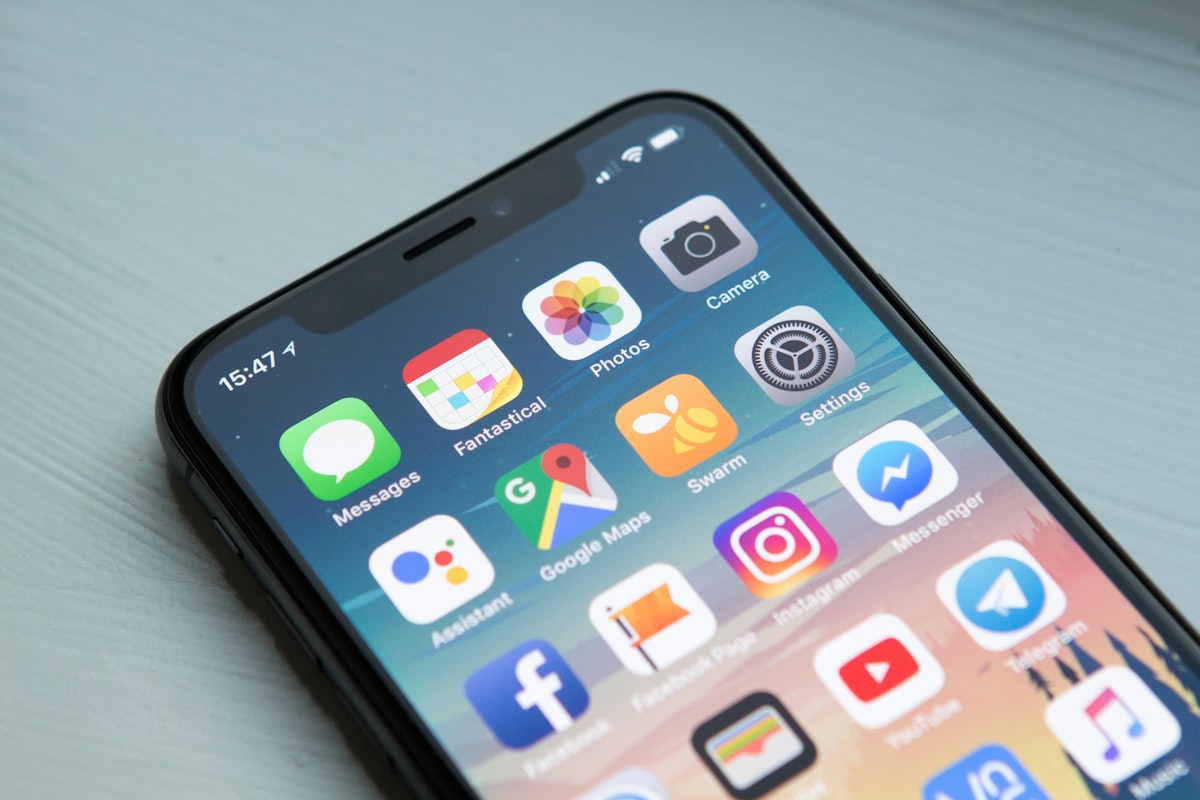
In 2026, more than 67% of e-signature transactions happen on mobile devices. Yet many e-signature platforms still treat mobile as an afterthought. Here's how to design signing experiences that work beautifully on smartphones.

The Mobile Signing Revolution

Why Mobile Matters

Usage Statistics (2026):

  • 67% of signatures completed on mobile
  • 82% of recipients open signature requests on phone first
  • 45% abandon desktop-only signing flows
  • Mobile signers complete 23% faster than desktop
  • User Expectations:

  • Sign anywhere, anytime
  • No app downloads required
  • Touch-friendly interfaces
  • Fast loading on cellular networks
  • Common Mobile Signing Pain Points

    1. Tiny Touch Targets

    Signature fields designed for mouse clicks are frustrating on mobile.

    2. Pinch-and-Zoom Required

    Documents not optimized for mobile screens force awkward zooming.

    3. Slow Loading

    Heavy PDFs over cellular networks cause abandonment.

    4. Poor Form Design

    Desktop-style forms are unusable on small screens.

    5. No Offline Support

    Lost connection = lost signature.

    Mobile-First Design Principles

    1. Touch-Optimized Interface

    Minimum Touch Target Sizes:

  • iOS Human Interface Guidelines: 44x44pt minimum
  • Android Material Design: 48x48dp minimum
  • Space Sign recommendation: 60px minimum height for signature fields
  • Best Practices:

  • Full-width signature fields on mobile
  • 16px minimum padding around touch targets
  • Disable double-tap zoom on signature canvas
  • Increase spacing between interactive elements (16px+)
  • Touch Gesture Support:

  • Smooth signature drawing with velocity filtering
  • Handle high-DPI screens properly
  • Prevent scroll while signing
  • Support both finger and stylus input
  • 2. Responsive Document Viewing

    Mobile-Optimized PDF Display:

    Instead of showing full PDF pages that require zooming, consider these approaches:

    Option A: Adaptive Scaling

  • Automatically scale document to fit screen width
  • Maintain aspect ratio
  • Overlay clickable fields at correct positions
  • Smooth pinch-to-zoom if needed
  • Option B: Field-by-Field Wizard

  • Show one field at a time on mobile
  • Include document context for each field
  • Progress indicator showing completion status
  • Skip between fields easily
  • Benefits of Wizard Approach:

  • No zooming required
  • Clear focus on current task
  • Faster completion on mobile
  • Better accessibility
  • 3. Performance Optimization

    Lazy Loading:

  • Load document pages on demand
  • Preload next page while viewing current
  • Show placeholder while loading
  • Cache loaded pages
  • Image Optimization:

  • Serve mobile-optimized images (640px width)
  • Use WebP format when supported
  • Quality: 75% for good balance
  • Implement responsive images with srcset
  • Code Splitting:

  • Load signature pad library only when needed
  • Defer non-essential scripts
  • Minimize initial bundle size
  • Use service workers for offline caching
  • 4. Offline Support

    Progressive Web App (PWA) Features:

  • Cache documents for offline viewing
  • Queue signatures when offline
  • Sync automatically when connection restored
  • Show clear offline status indicator
  • Background Sync:

  • Register sync event for pending signatures
  • Retry failed uploads automatically
  • Notify user when sync completes
  • Handle conflicts gracefully
  • 5. Biometric Authentication

    Modern Mobile Authentication:

    Face ID / Touch ID Integration:

  • Use Web Authentication API
  • Check for biometric availability
  • Fall back to PIN/password gracefully
  • Store credentials securely
  • Benefits:

  • Faster authentication
  • More secure than passwords
  • Better user experience
  • Reduced friction
  • Mobile Signature Methods

    1. Draw Signature

    Best for:

  • Personal documents
  • Maximum authenticity feel
  • One-time signers
  • Implementation Tips:

  • Canvas size: full width, 200-250px height
  • Pen width: 2-4px (adaptive to pressure on supported devices)
  • Background: white or light gray
  • Clear button prominently placed
  • Preview before accepting
  • 2. Type Signature

    Best for:

  • Quick signing
  • Formal appearance
  • Accessibility
  • Implementation Tips:

  • Font choices: 3-5 script fonts
  • Real-time preview
  • Size adjustment slider
  • Color options (black, blue)
  • Bold/italic variants
  • 3. Upload Signature

    Best for:

  • Pre-created signatures
  • Corporate branding
  • Consistency across documents
  • Implementation Tips:

  • Accept JPG, PNG, SVG
  • Mobile camera integration
  • Crop and edit tools
  • Background removal
  • Save for future use
  • 4. Saved Signature

    Best for:

  • Returning users
  • Multiple signatures per session
  • Speed and convenience
  • Implementation Tips:

  • Save securely (encrypted)
  • Biometric re-authentication option
  • Multiple saved signatures
  • Easy management
  • Initials + full signature
  • Mobile Form Filling Best Practices

    Input Field Optimization

    Text Inputs:

  • Use appropriate keyboard types (email, phone, number, URL)
  • Show relevant autocomplete suggestions
  • Clear placeholder text
  • Error messages below field
  • Sufficient height (44px minimum)
  • Date Pickers:

  • Native date picker on mobile
  • Clear format indication (MM/DD/YYYY)
  • Reasonable default dates
  • Quick date selection (today, tomorrow)
  • Dropdowns:

  • Use native select on mobile
  • Searchable for long lists
  • Group related options
  • Show selection count for multi-select
  • Checkboxes:

  • Large touch targets (48x48px)
  • Clear labels
  • Group related items
  • "Select all" for multiple options
  • Form Layout

    Single Column:

  • Stack all fields vertically
  • Full width fields
  • Clear visual hierarchy
  • Ample whitespace
  • Progressive Disclosure:

  • Show only relevant fields
  • Conditional fields appear when needed
  • Collapsible sections
  • Clear step indicators
  • Smart Defaults:

  • Pre-fill when possible
  • Remember previous values
  • Suggest based on context
  • Validate as user types
  • Navigation Patterns

    1. Bottom Navigation Bar

    Best for: Multi-page documents

    Elements:

  • Previous/Next buttons
  • Page indicator (3 of 12)
  • Save draft option
  • Close/Cancel
  • 2. Sticky Action Button

    Best for: Long documents

    Features:

  • Fixed at bottom of screen
  • Changes based on state (Sign Now, Next Field, Complete)
  • Clear CTA text
  • Disabled state when incomplete
  • 3. Field Navigation

    Best for: Complex forms

    Features:

  • Jump to field list
  • Mark completed fields
  • Show required vs optional
  • Quick navigation between fields
  • Error Handling on Mobile

    Validation Messages

    Do:

  • Show inline below field
  • Use clear, specific language
  • Suggest corrections
  • Allow easy editing
  • Don't:

  • Use popup alerts
  • Block entire screen
  • Use technical jargon
  • Make users start over
  • Network Errors

    Strategies:

  • Auto-save progress frequently
  • Show retry option
  • Queue for later sync
  • Clear status messages
  • Permission Errors

    Camera/Storage Access:

  • Explain why needed
  • Show clear instructions
  • Provide alternative methods
  • Graceful degradation
  • Testing Mobile Signing Flows

    Device Testing Matrix

    Minimum Test Coverage:

  • iPhone (iOS latest, latest-1)
  • Samsung Galaxy (Android latest)
  • Budget Android device
  • Tablet (iOS and Android)
  • Screen Sizes:

  • Small (320-375px)
  • Medium (375-414px)
  • Large (414-480px)
  • Tablet (768px+)
  • Connection Testing

    Network Conditions:

  • 4G/5G
  • 3G (throttled)
  • Slow 3G (very throttled)
  • Offline
  • Usability Metrics

    Track:

  • Time to complete
  • Error rate
  • Abandonment rate
  • Touch target accuracy
  • Scroll depth
  • Accessibility Considerations

    Screen Reader Support

    Ensure:

  • Proper heading hierarchy
  • ARIA labels on all interactive elements
  • Form field associations
  • Error announcements
  • Status updates
  • Motor Accessibility

    Features:

  • Voice input support
  • Large touch targets
  • No time limits
  • Alternative signature methods
  • Visual Accessibility

    Requirements:

  • 4.5:1 contrast minimum
  • Text scaling support
  • No color-only indicators
  • Clear focus states
  • Performance Benchmarks

    Target Metrics

    Initial Load:

  • First Contentful Paint: < 1.5s
  • Time to Interactive: < 3s
  • Total page size: < 500KB
  • Interactions:

  • Touch response: < 100ms
  • Field transitions: < 200ms
  • Signature rendering: < 50ms
  • 3G Performance:

  • Usable in < 5s
  • Critical content in < 3s
  • Progressive enhancement
  • Conclusion

    Mobile-first signing isn't optional—it's essential. By following these best practices:

    ✅ Touch optimization makes signing effortless

    ✅ Responsive design works on all screen sizes

    ✅ Performance optimization ensures fast loading

    ✅ Offline support enables signing anywhere

    ✅ Smart UX patterns reduce friction

    The result? Higher completion rates, happier users, and more successful transactions.

    Key Takeaway: Design for mobile first, then enhance for desktop—not the other way around.


    See mobile signing in action: [Try Space Sign on your phone](/pricing) or [explore our mobile SDK](/products/e-signature).

    Ready to Try Space Sign?

    Experience the power of open-source, AI-powered e-signatures.

    Space Sign Assistant

    Hello there 👋 I’m the Space Sign Assistant. How can I help you today?